 Manifestiny, early access
Testing Manifestiny on your iPhone
Thank you for trying an early build. Getting it onto your phone takes a short form, two emails and about five minutes. This page walks through each step, and what to do if an email does not arrive.
Before you start
- An iPhone on iOS 17 or later. Older iPhones cannot run the build.
- Your Apple Account email, the address you sign in to your iPhone with. Apple sends both invitations there, so that is the one to give us below.
- TestFlight, Apple's free app for trying apps before release. You can install it now or when step 4 asks for it.
-
Tell us where to send the invitations
Give us your name and your Apple Account email. We start the invitations by hand, usually the same day.
-
Email 1 of 2, from Apple Developer
Accept the team invitation
The first email comes from Apple with the subject "You're invited to join a development team." Open it on any device and tap Accept invitation. Apple will ask you to sign in with your Apple Account and may show its developer terms. Agree to them, and you are done.
Please accept within three days. After that the link stops working and we send a fresh one, so just tell us if you missed it.
Why a team? Apple only lets early builds reach people on the developer's team. Joining gives you nothing to manage and costs nothing. We can remove you whenever you like.
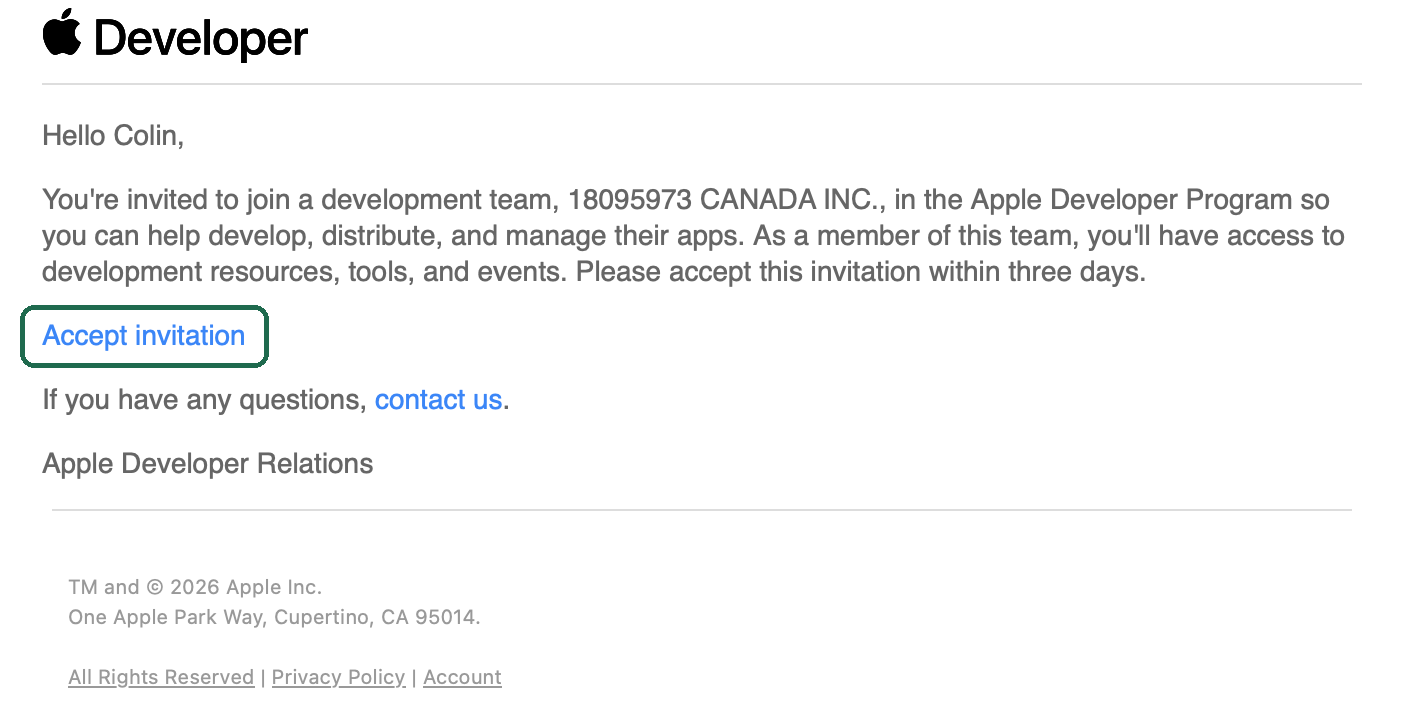
The first email. Tap Accept invitation. -
We add you to the tester group
Nothing for you to do here. Once Apple tells us you have joined, we add you to the Manifestiny testers, usually the same day. The second email follows automatically.
-
Email 2 of 2, from TestFlight
Install the app from TestFlight
The second email has the subject "Manic Edge has invited you to test Manifestiny." Open it on your iPhone and tap View in TestFlight. If TestFlight is not installed yet, the App Store opens so you can get it, then come back and tap the button again.
In TestFlight, tap Accept, then Install. Manifestiny appears on your home screen like any other app.
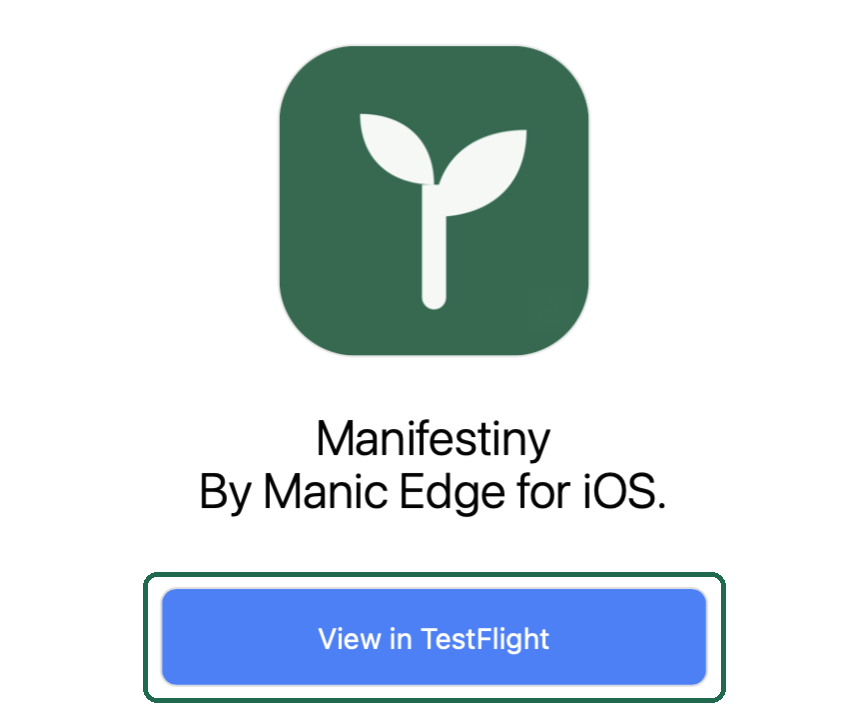
The second email. Open it on your iPhone and tap View in TestFlight. -
Open Manifestiny and live with it
Start with one real outcome you want, something small enough to matter this month. Manifestiny turns it into a few tiny, scheduled steps. Accept the plan, let the reminders come, and notice what feels right and what feels off.
New builds install through TestFlight on their own, and TestFlight lets you know when one arrives. To send a note, open TestFlight, tap Manifestiny, then Send Beta Feedback. Taking a screenshot inside the app also offers a feedback option. A reply to the message that brought you here works just as well.
If something is off
I sent the form, but no email from Apple has arrived
We send the first invitation by hand, usually the same day. Check your spam or Promotions folder for a message from Apple Developer. If there is nothing after a day, send the form again or reply to the message that brought you here.
The Accept invitation link says it has expired
Apple invitations last three days. Let us know and a new one goes out the same day.
Apple asks me to sign in with a different account
The invitation is tied to the address we sent it to. Sign in with the Apple Account that uses that address, or send the form again with the address your Apple Account does use.
I accepted, but the TestFlight email has not arrived
We add testers by hand, so there can be a short gap. If two days pass with no email, give us a nudge.
TestFlight says the build is not available for my device
The build needs iOS 17 or later. Update your iPhone in Settings, General, Software Update, then try again. iPhone X and earlier cannot update that far.
I would like to stop testing
Open TestFlight, tap Manifestiny, then Stop Testing. Say the word and we will also remove you from the team. Your plans stay on your phone until you delete the app.